Example G-8: 2D Part from Image
In this example, a 2D part is created based on an image. This modeling method imports the image, applies a scale, and automatically thresholds it using the default Otsu’s method. There is also a noise removal option. Number of voxels and the base material are set automatically. This example mirrors Example C-5.
This procedure is especially useful for grayscale images obtained from microscopy. See Image-Based Structures for more information and some important tips. In order to avoid copyright issues, a simple image of a dual-phase steel is taken from Wikipedia (licensed under CC BY-SA 4.0) and is used for this example.

Here, we first select the Image Processing (Single 2D Image) from the Model Manipulations tab and then move to the Basic Model Information tab. This disables the number of voxels which is determined by the input image.
We want to model a two dimensional structure a voxel size of 0.02 units in all directions and a base material of 1. The image processing code will automatically set the other elements to 2. We set the parameter log_debug to True for demonstration purposes.
Afterwards, the parameters for image processing are entered in the Model Manipulations tab. The first parameter is Image Path which can be typed, pasted or selected. Afterwards, we set the Scale and we can also request noise removal. The pixels selected by the image are automatically set to 2.
The part is then exported to an Abaqus™ input file in 2D mode with CPE4R elements. The Non-Empty elements are requested to be exported.
The following figures show the various tabs of the GUI in this example:
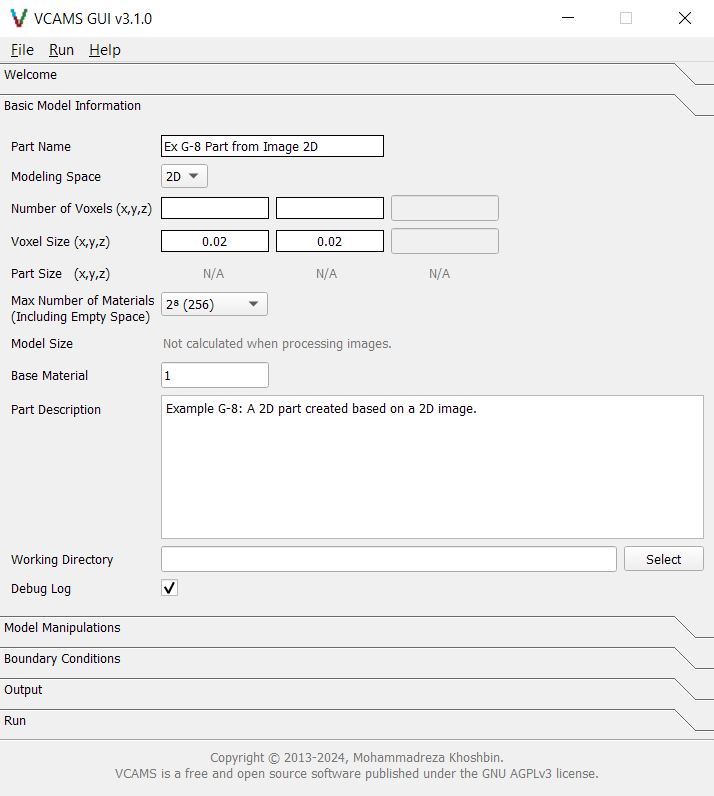
Fig. 61 The GUI’s “Basic Model Information” tab for Example G-8.
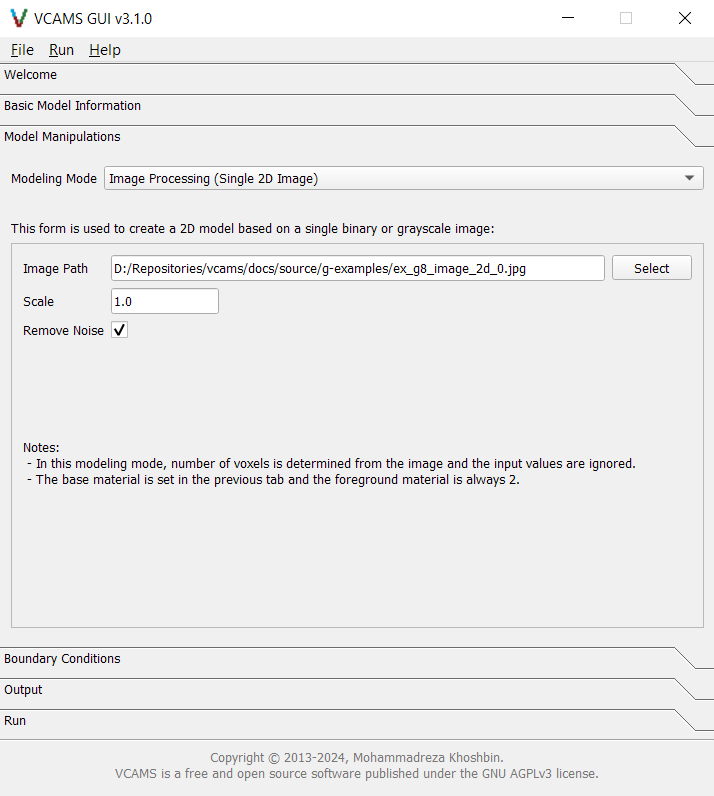
Fig. 62 The GUI’s “Model Manipulations” tab for Example G-8.
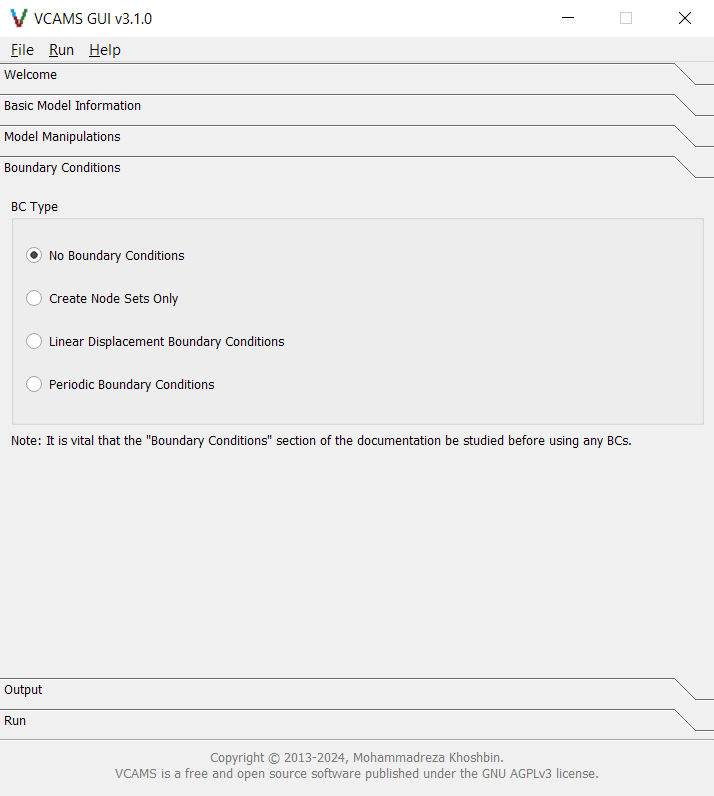
Fig. 63 The GUI’s “Boundary Conditions” tab for Example G-8.
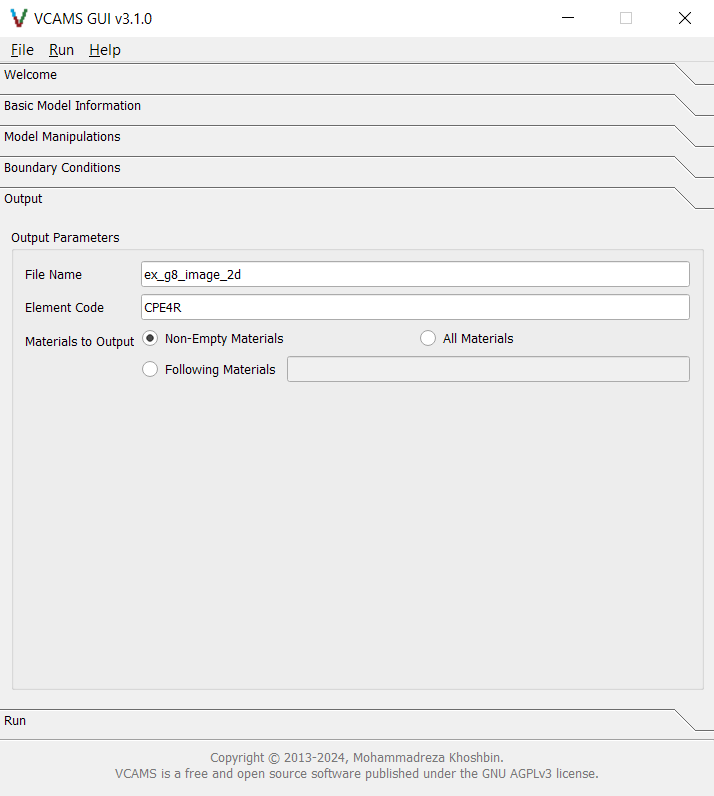
Fig. 64 The GUI’s “Output” tab for Example G-8.
After filling the form, the model can be created by pressing the “Create Model” button. The screen automatically switches to the Run tab and will show the program log.
At the end of the process, a dialog box announces the completion and gives the path to the output file.
Also, the program log and a summary of model information will be shown in the Process Log section of the Run tab. It will also be written to a .log file in the output folder.
Finally, a configuration file based on the examples will be written to the output folder
and can be used to import the model in the future.
It will look like this.